iPhone 11 Pro No Service Fix: A Complete Troubleshooting Guide
Table of Contents
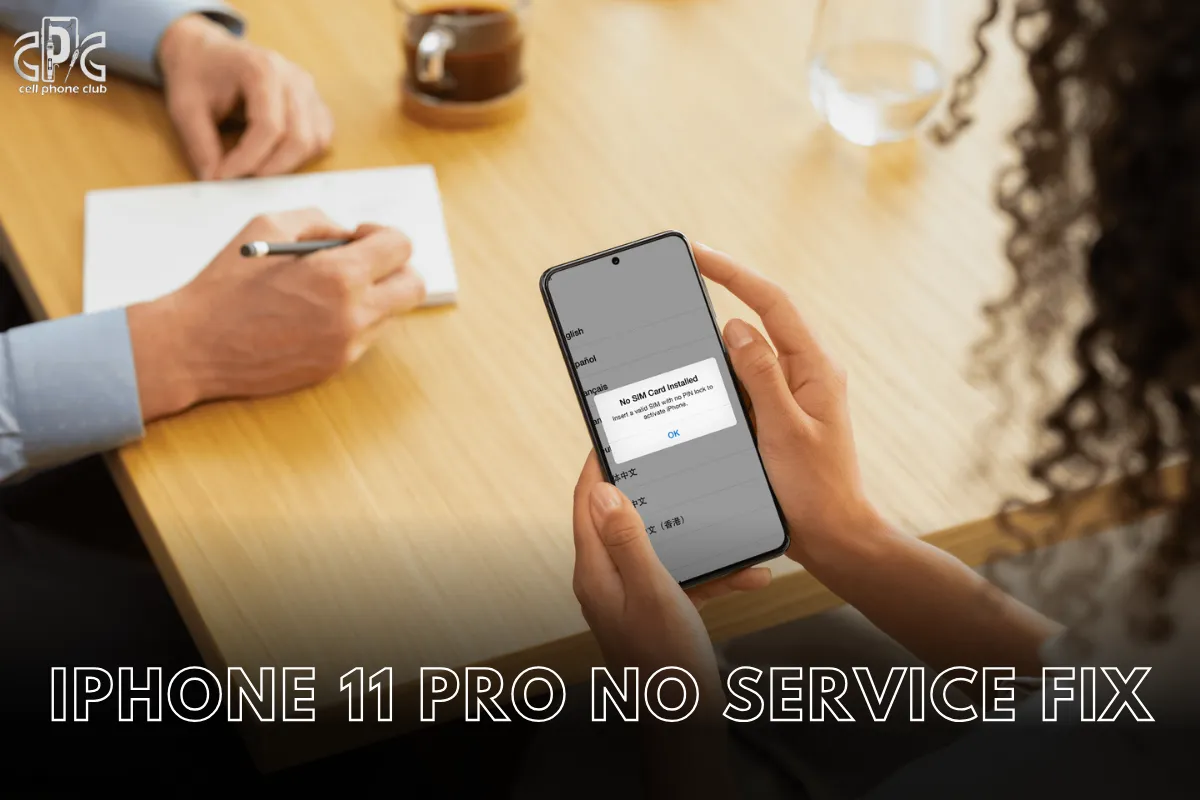
Ever pulled out your iPhone 11 Pro only to be greeted with that dreaded “No Service” message? Annoying, right? Whether you’re trying to text your friends, scroll Instagram, or make an emergency call — no service means no luck. Don’t panic! This guide is your friendly, step-by-step solution to the iPhone 11 Pro no service fix problem.
We’ll walk through the basics and dive deep into hidden causes and clever solutions. Stick around—relief is just a few scrolls away.
Why is My iPhone 11 Pro Showing No Service?
When your iPhone 11 Pro suddenly drops connection and flashes “No Service,” it’s not just a random hiccup—it’s your phone waving a red flag. The issue usually means your device has lost touch with the cellular network and can’t make calls, send texts, or access mobile data.
Common causes behind this annoying disruption include:
Poor Signal Coverage: You might be in a low-reception zone or dead spot.
SIM Card Problems: A dislodged or damaged SIM can break communication.
Outdated Software: If your iOS or carrier settings aren’t updated, it can lead to connectivity issues.
Internal Hardware Faults: Sometimes the antenna or baseband chip is at fault.
Understanding these triggers is key to applying the right fix on iPhone 11 Pro no service issue that actually works.
iPhone 11 Pro No Service Fix
Seeing “No Service” on your iPhone 11 Pro can be frustrating, especially when you’re expecting an important call or trying to access mobile data. This issue isn’t always caused by one simple factor.
The iPhone 11 Pro no service fix can depend on what’s going wrong under the surface — whether it’s your settings, SIM, or even a damaged component.
Let’s break down a few potential culprits:
Airplane Mode Activated: A quick toggle off and on might solve it instantly.
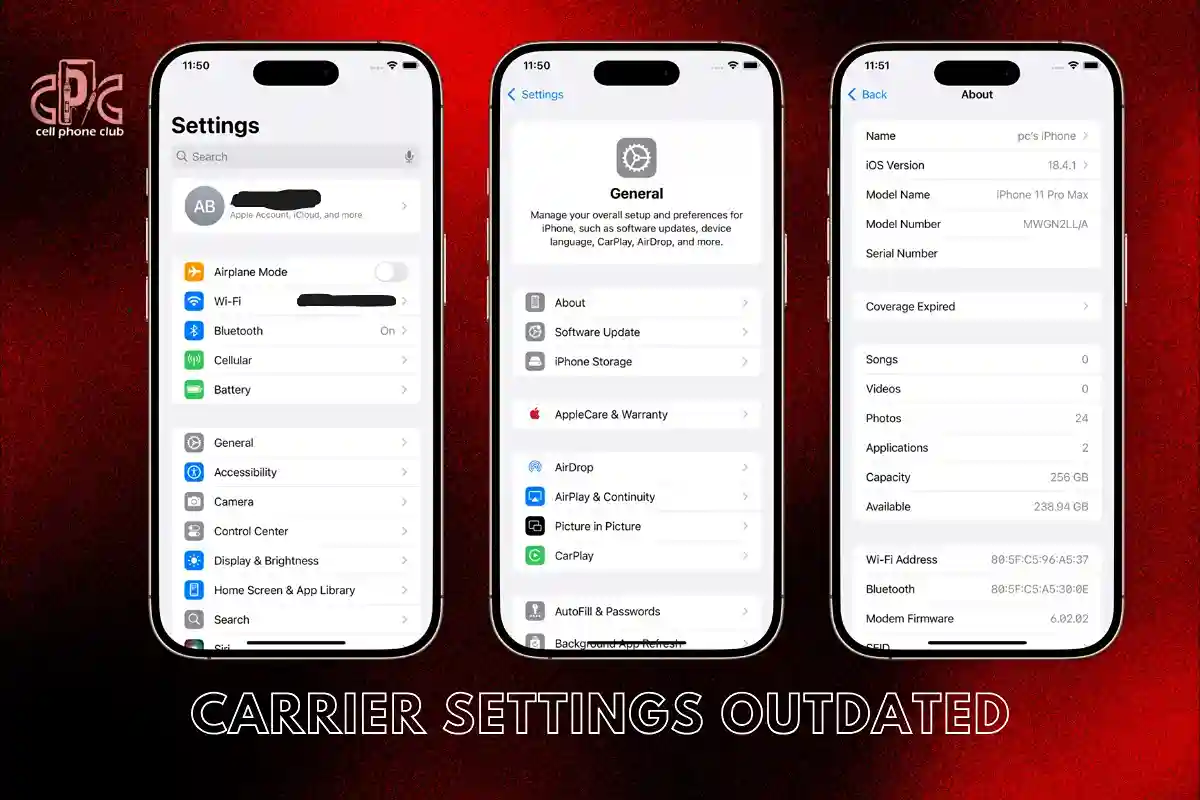
Carrier Settings Outdated: Go to Settings > General > About to check for updates.
Physical SIM Damage: Remove and inspect your SIM card for scratches or wear.
By narrowing down the cause, you’ll get closer to restoring full signal and peace of mind. Ready to dive into all the possible fixes? Let’s get started.
Let’s Start with the Basics: Did You Check the Obvious?
Before diving deep into technical solutions, it’s smart to rule out the most common issues. These quick checks might seem basic, but they often resolve the iPhone 11 Pro no service fix puzzle in seconds. Here’s where to begin:
Restart Your iPhone : A basic reboot flushes out temporary system hiccups that can block service.
Toggle Airplane Mode : Switch it on, wait a few seconds, and turn it back off. This resets network connections.
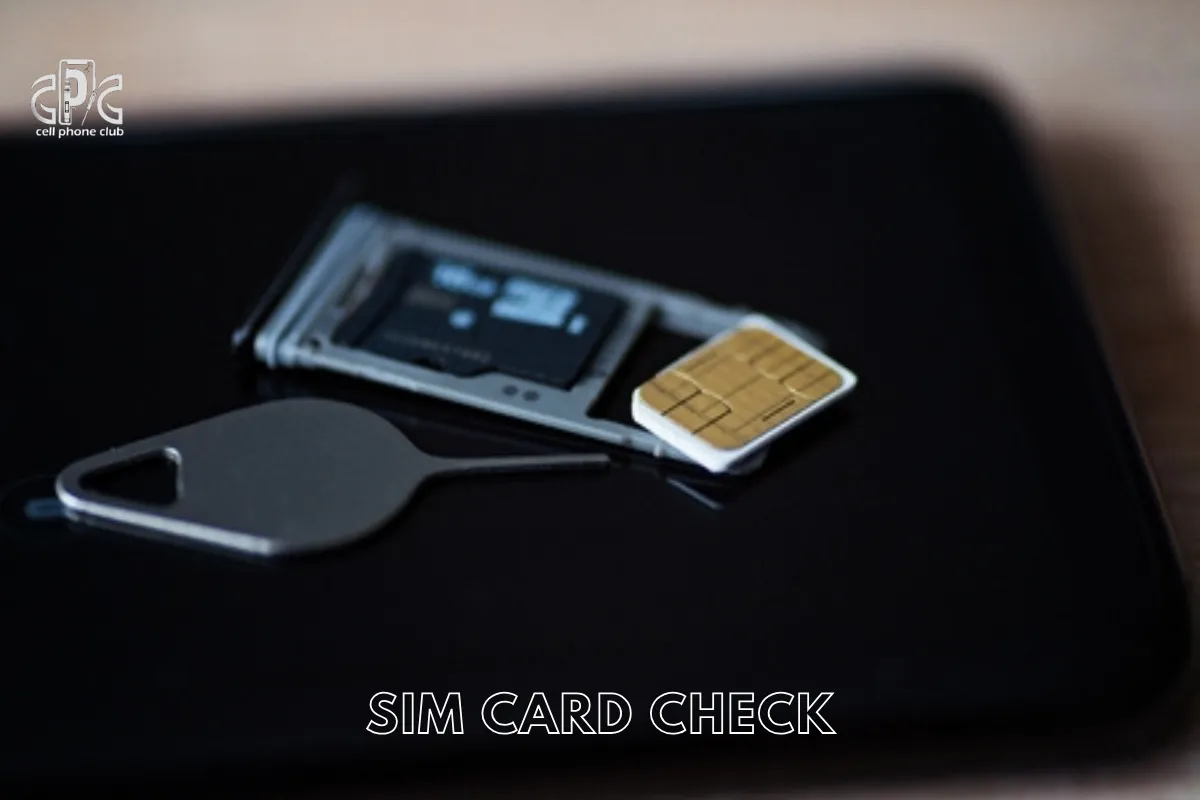
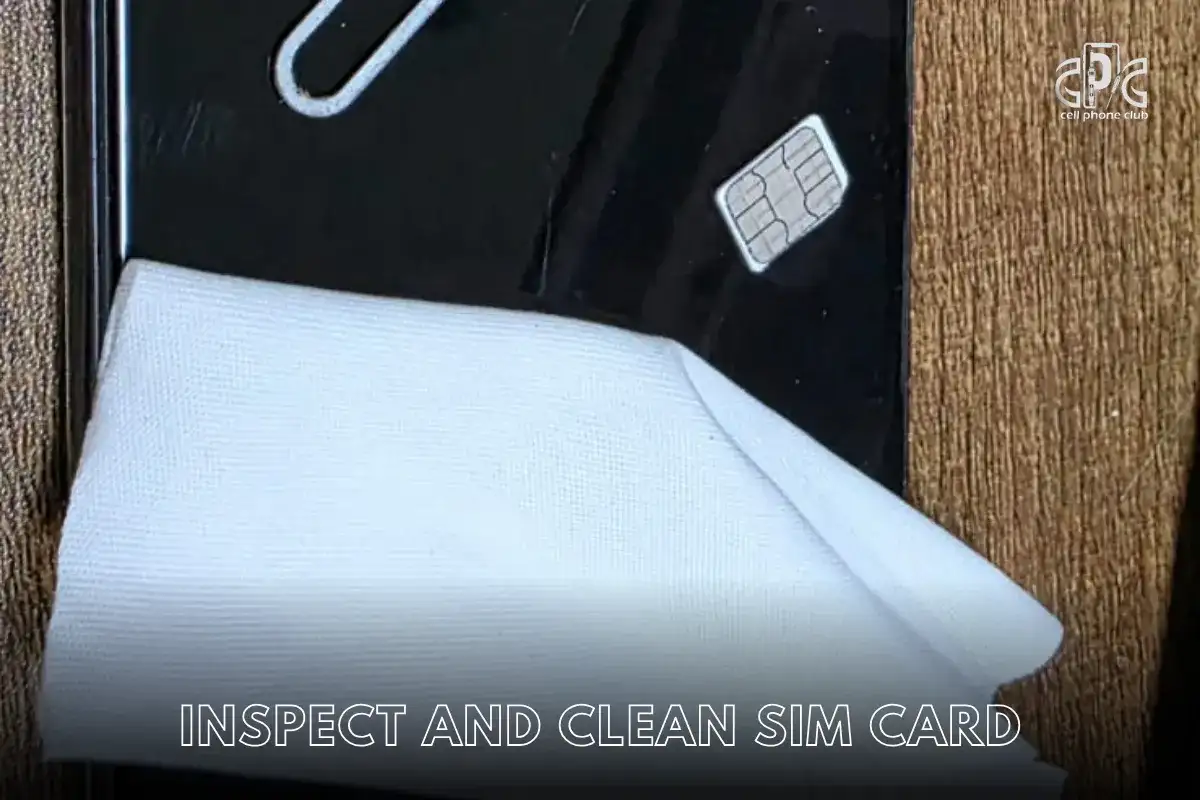
SIM Card Check : Eject it, gently clean it, and place it back securely. A misaligned SIM can cut off signal access.
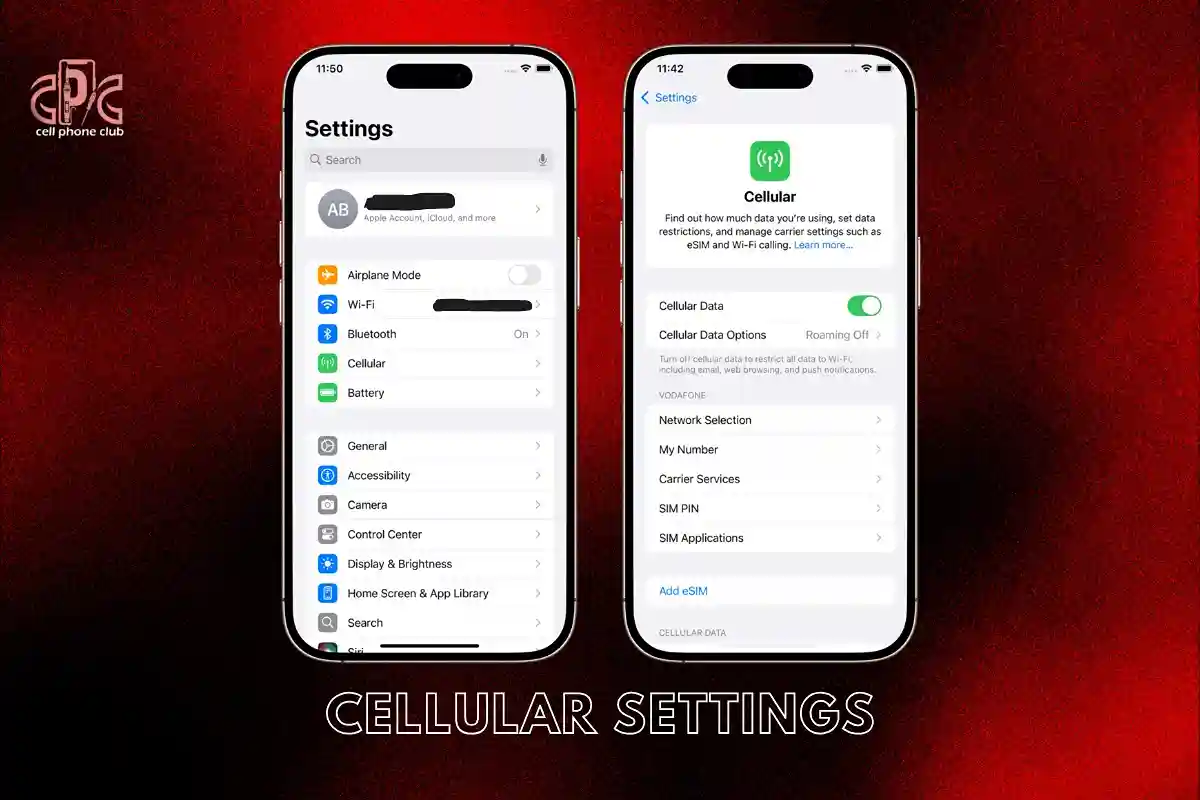
Cellular Settings – Head to Settings > Cellular and double-check that cellular data is enabled.
Starting with these simple steps can often save time, especially when dealing with sudden signal loss.
Is It Just You or Everyone Around You Too?
Before diving into technical solutions, take a moment to scan your surroundings. Is your iPhone the only one without service, or are others affected too? This step might sound simple, but it saves a lot of time and confusion.
Carrier-Wide Issues: Use platforms like Downdetector or even a quick Twitter search to see if others are reporting similar problems. A network outage could be the real culprit.
Local Signal Drops: Sometimes, it’s just a temporary glitch in your neighborhood or building that affects signal reception.
If your friends using the same network have full bars while your signal is dead, then it’s time to explore an iPhone 11 Pro no service fix. But if everyone’s affected, your carrier likely has a broader issue that needs their attention first.
SIM Card Drama: Tiny Card, Big Problems
Sometimes, the solution to an iPhone 11 Pro no service fix starts with something as simple as the SIM card. This tiny chip can easily be the silent culprit behind lost signal and endless frustration.
Power Down First: Always turn off your iPhone before handling the SIM. It’s a basic but crucial step to avoid system hiccups.
Inspect and Clean : Pop the SIM out with the ejector tool, then gently wipe it using a microfiber cloth. Dust, moisture, or grime can block proper connection.
Test and Replace: Slide it back in securely. If there’s still no service, try the SIM in another device. No signal there either? It’s likely the SIM itself is faulty—your carrier can hook you up with a new one.
Taking five minutes to check the SIM can sometimes be the simplest iPhone 11 Pro no service fix of all.
Resetting Network Settings – Don’t Worry, It’s Not That Scary
When your signal suddenly vanishes and you’re staring at “No Service,” don’t panic. Resetting your network settings might be all it takes to get things back on track. It clears out all previously stored Wi-Fi, Bluetooth, VPN, and cellular configurations—giving your iPhone a clean slate to reconnect.
To try this potential iPhone 11 Pro no service fix, follow these simple steps:
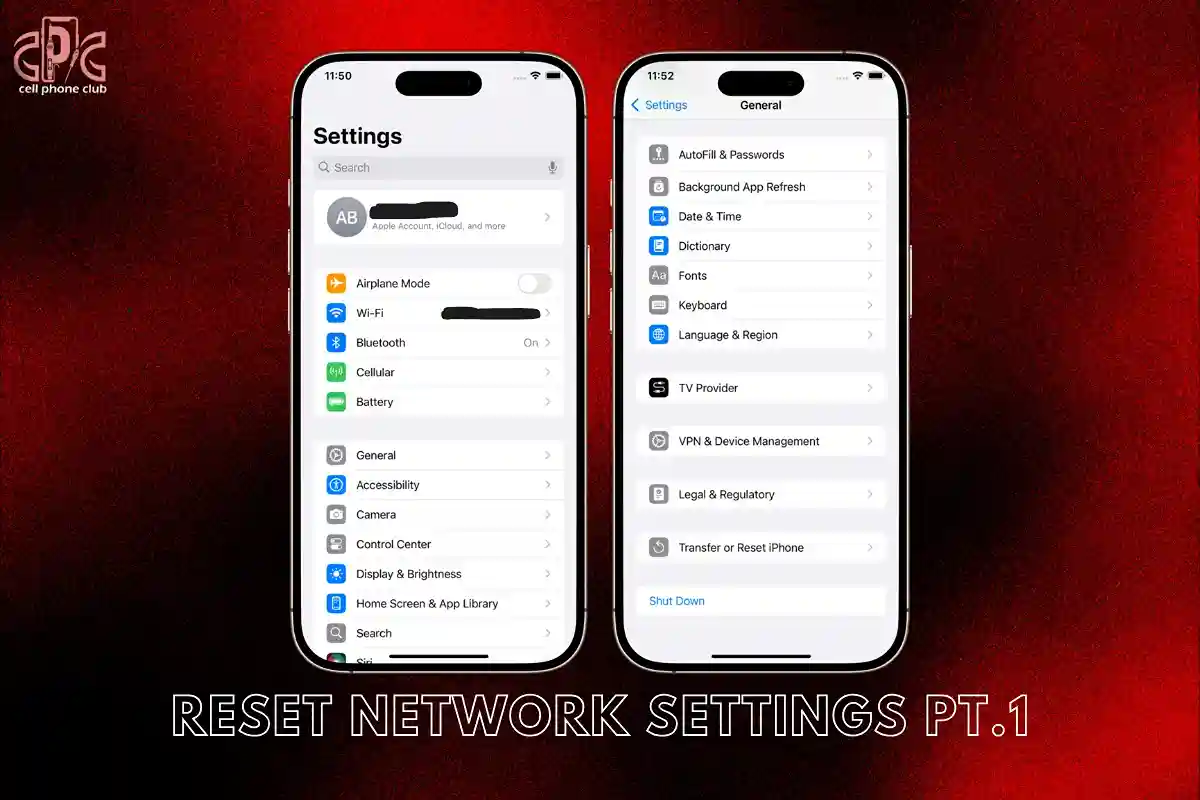
Open Settings > tap General > then Transfer or Reset iPhone
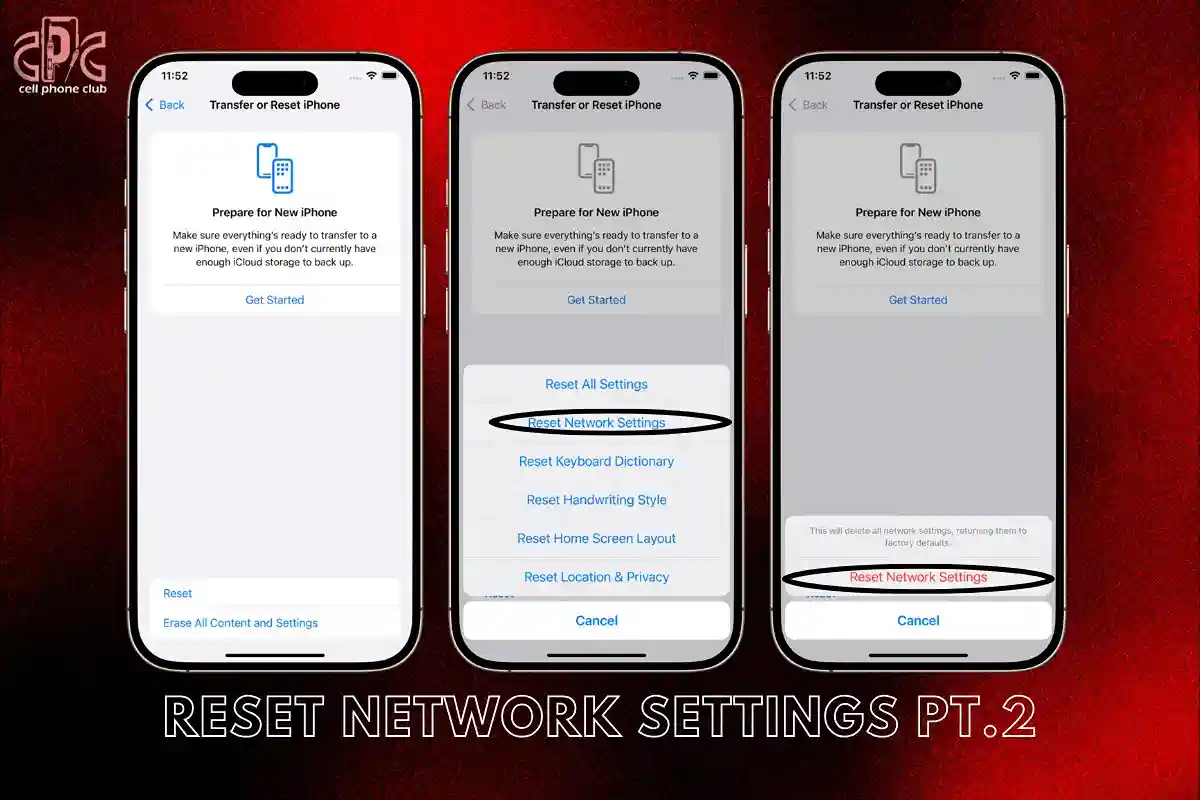
Select Reset, then choose Reset Network Settings
Enter your device passcode and confirm the reset
Your iPhone will reboot and re-establish its default network setup. This move often clears out bugs or outdated configurations that block service. Once it restarts, give it a moment and check your signal—this basic reset can be surprisingly effective.
iOS Update Pending? Your Signal Might Be Waiting on That Too
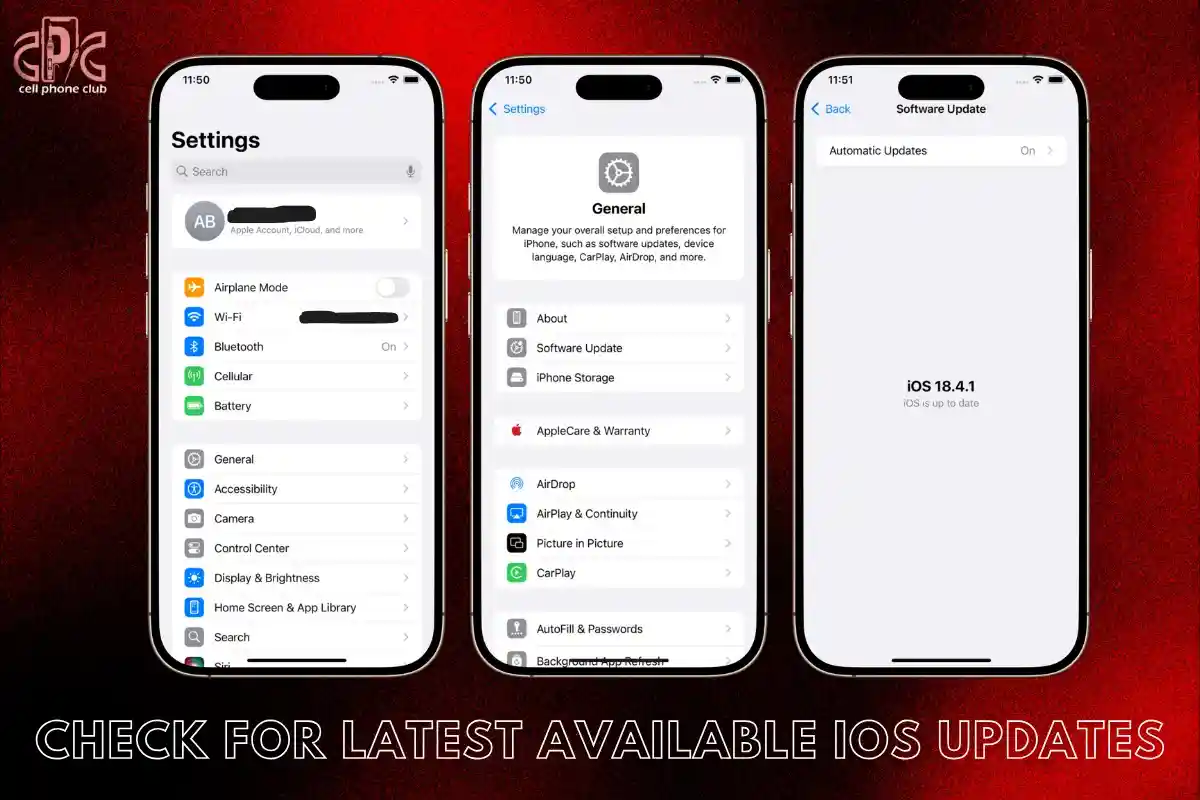
Sometimes the simplest solution hides in plain sight. If your iPhone 11 Pro is struggling with signal issues, running outdated iOS software could be the silent culprit. Apple often rolls out essential updates that include behind-the-scenes fixes for modem performance and network stability.
Here’s how to check for updates that may help with your iPhone 11 Pro no service fix:
Navigate to Settings > General > Software Update – your phone will search for available updates.
Tap Download and Install – ensure your device is on Wi-Fi and has at least 50% battery to proceed.
Let the update finish and reboot – once complete, many users notice improved signal strength or full service restoration.
Staying up to date isn’t just about features—it could be your key to reconnecting.
Carrier Settings on iPhone – The Silent Fixer You Probably Ignored
Carrier settings play a key role in how your iPhone communicates with your network.
When they’re outdated or misaligned, they can quietly cause signal issues—no dramatic warnings, just poor reception or total service loss. That’s why checking them should never be skipped.
To update your carrier settings:
Open: Go to Settings > General > About
Wait: Pause a few seconds for a prompt to appear
Update: Tap “Update” if it shows up
This simple fix often works behind the scenes, resolving bugs that may be interrupting your mobile connection.
For anyone dealing with signal problems, updating carrier settings is a must-do step in the iPhone 11 Pro no service fix process—one that can save you a trip to the repair shop.
Roaming, LTE, and Hidden Toggles on iPhone You Should Peek At
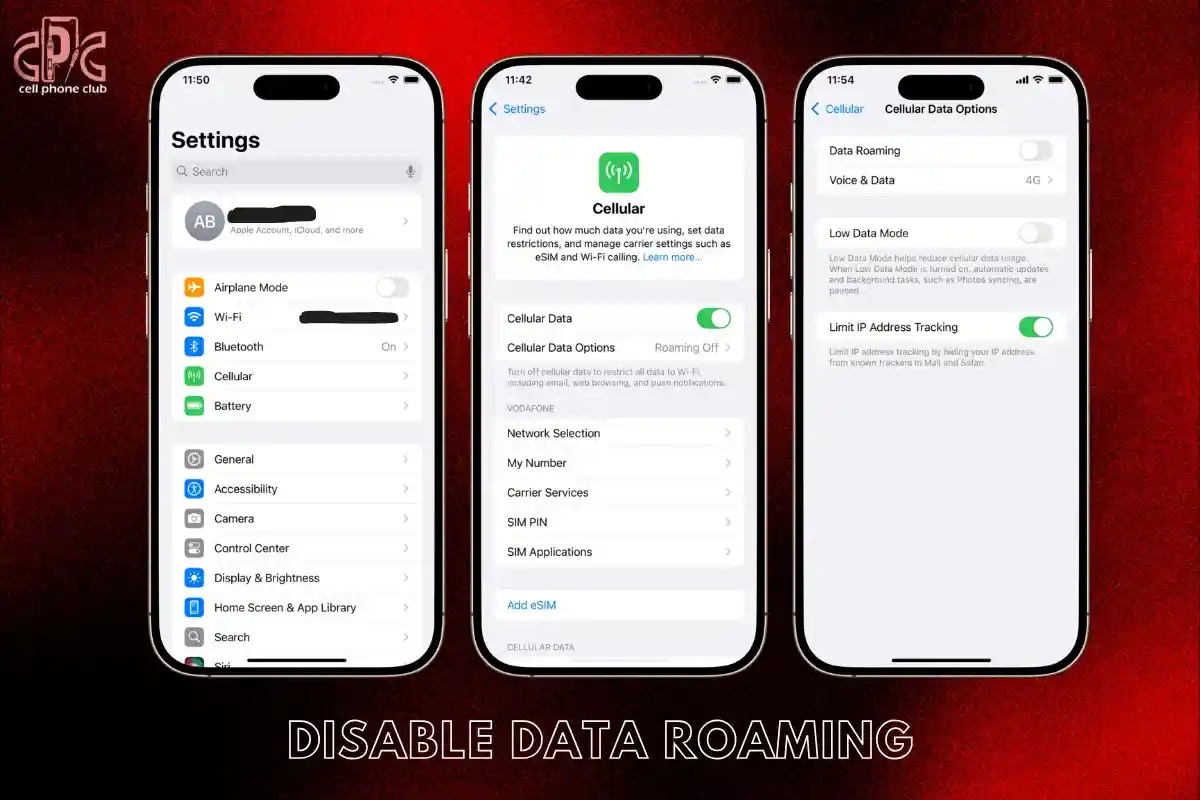
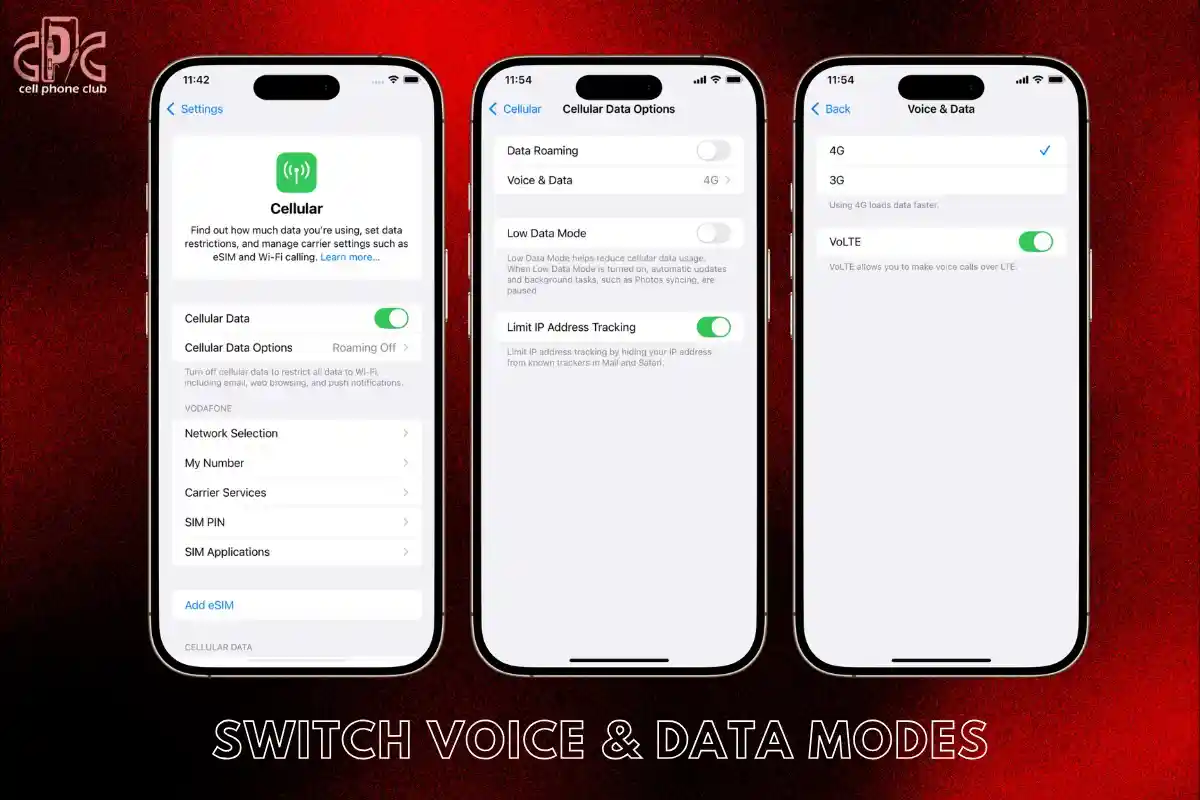
Signal drops on your iPhone 11 Pro might be tied to cellular settings you’ve overlooked—especially after inserting a new SIM or coming back from a trip. A smart place to start for any iPhone 11 Pro no service fix is diving into your network configuration. Head to: Settings > Cellular > Cellular Data Options, then try the following:
Toggle LTE On or Off – Depending on your network strength, LTE might help or hinder your connection.
Disable Data Roaming – If you’re back from travel or using a local SIM, roaming can mess with signal detection.
Switch Voice & Data Modes – Swap between LTE and 3G to check what provides a stable connection.
Try these tweaks one by one. A small toggle change could be all it takes to get your service back on track.
Still No Bars? Let’s Try the Airplane Mode Trick Again – But Differently
If you’re staring at your screen and still seeing no signal, it’s time to refresh your connection in a more strategic way. This isn’t your basic airplane mode on-and-off shuffle—it’s a deeper reset that nudges your phone into reconnecting from scratch.
Here’s how to do it step-by-step:
Enable Airplane Mode: Swipe into Control Center and turn it on.
Power Down Completely: Shut the phone off and give it about 30 seconds.
Restart and Disable Airplane Mode: Power it back on and switch off airplane mode.
This technique often prompts your device to re-register with the nearest and strongest network tower. It’s a simple but effective route to achieve an iPhone 11 Pro no service fix, especially when other quick resets don’t work.
Restore Option – Like a Factory Reset But With Caution Tape
If you’re still struggling with your iPhone 11 Pro no service fix, a full restore could be your last resort. However, it’s important to tread carefully, as this process will erase all your data. Before proceeding, be sure to back up your device to avoid losing anything important.
To start, connect your iPhone to your computer using iTunes or Finder. Once connected, you’ll have the option to choose “Restore iPhone” from the menu. Follow the on-screen instructions to reinstall the software.
Restoring your iPhone can help resolve deeper issues like corrupted settings or software bugs that simple resets can’t fix. Keep in mind that while this method can be effective, it’s not something you should do regularly—use it as a last-ditch effort when nothing else works.
Steps to follow:
Backup your data: Ensure your photos, messages, and app data are saved.
Connect to iTunes/Finder: Open the software and select your iPhone.
Select Restore: Confirm and follow the prompts to restore your device.
https://youtu.be/wSc3jTc19QU?si=s6DH5giEoxeszJgK
This solution is powerful but should be used with caution when troubleshooting your iPhone 11 Pro no service fix.
When Hardware is the Culprit: Antenna & iPhone Internals
If your iPhone 11 Pro is showing the “no service” error, sometimes the issue isn’t software-related. Instead, it could be tied to the internal hardware of your device. If you’ve recently dropped your phone or had it repaired, internal components like the antenna might have been damaged.
Common hardware issues to check for:
Disconnected antenna cable: The antenna cable might have come loose, affecting connectivity.
Logic board problems: Issues with the logic board can interfere with your phone’s ability to connect to a network.
Water damage: Exposure to water can ruin the internal components, including the antenna.
Unfortunately, these issues aren’t something you can easily fix on your own. For these types of problems, it’s best to take your iPhone 11 Pro to an Apple Store or a certified technician for proper diagnosis and repairs.
Have You Been to a New Place Lately? Region-Based Signal Issues
If you’ve recently traveled to a new place, you may encounter “No Service” issues on your iPhone 11 Pro. This could be due to regional signal differences, where some areas use frequency bands your phone might not support.
To troubleshoot this issue, start by checking your carrier’s coverage map to ensure the region you’re in has proper network support.
If you’re using a local SIM card, make sure it’s compatible with your iPhone 11 Pro. Often, carriers have specific requirements for different phone models, and a mismatch could cause service interruptions.
Here are a few quick fixes:
Toggle Automatic Network Selection: Disable this option and manually select a nearby network to resolve connectivity issues.
Check Network Compatibility: Verify that your phone supports the regional frequency bands.
Contact Your Carrier: Reach out for troubleshooting assistance or to check if there are any local outages.
Could a Case Be Blocking Your Signal? Style vs. Signal War
Sometimes, a stylish metal case or a heavy-duty cover can be more trouble than it’s worth when dealing with an iPhone 11 Pro no service issue.
While cases offer protection, they can also block or interfere with your device’s antenna signals, especially if they contain magnets or are made of thick materials.
To test if your case is the culprit:
Remove the case completely.
Move to an open area with strong signal reception.
Wait for a few seconds and watch for any change in signal bars.
By eliminating the case, you can quickly determine if it was the source of the issue. For optimal signal reception, choose a case that is light and designed not to disrupt the antenna functionality.
A simple, signal-friendly case can make a world of difference when trying to fix that frustrating “no service” issue on your iPhone 11 Pro.
Time to Call in the Pros: When Apple or Your Carrier Should Step In
If you’ve exhausted all the troubleshooting options and your iPhone 11 Pro still shows “No Service,” it may be time to bring in the experts for a solution. Here’s when you should consider getting professional help:
SIM Card and Software Issues Are Ruled Out: After checking and swapping SIM cards or updating software, if there’s still no improvement, it’s time to seek further help.
Possible Physical Damage: If your iPhone 11 Pro has experienced any drops or impacts, internal components could be damaged. Professionals can help assess the hardware.
Warranty Coverage: If your device is still under warranty, Apple or your carrier can help with a repair or replacement.
In these cases, visiting an Apple Store for a detailed hardware inspection or contacting your carrier for assistance with SIM or plan issues can get you back on track.
Using Wi-Fi Calling Until You Sort This Out
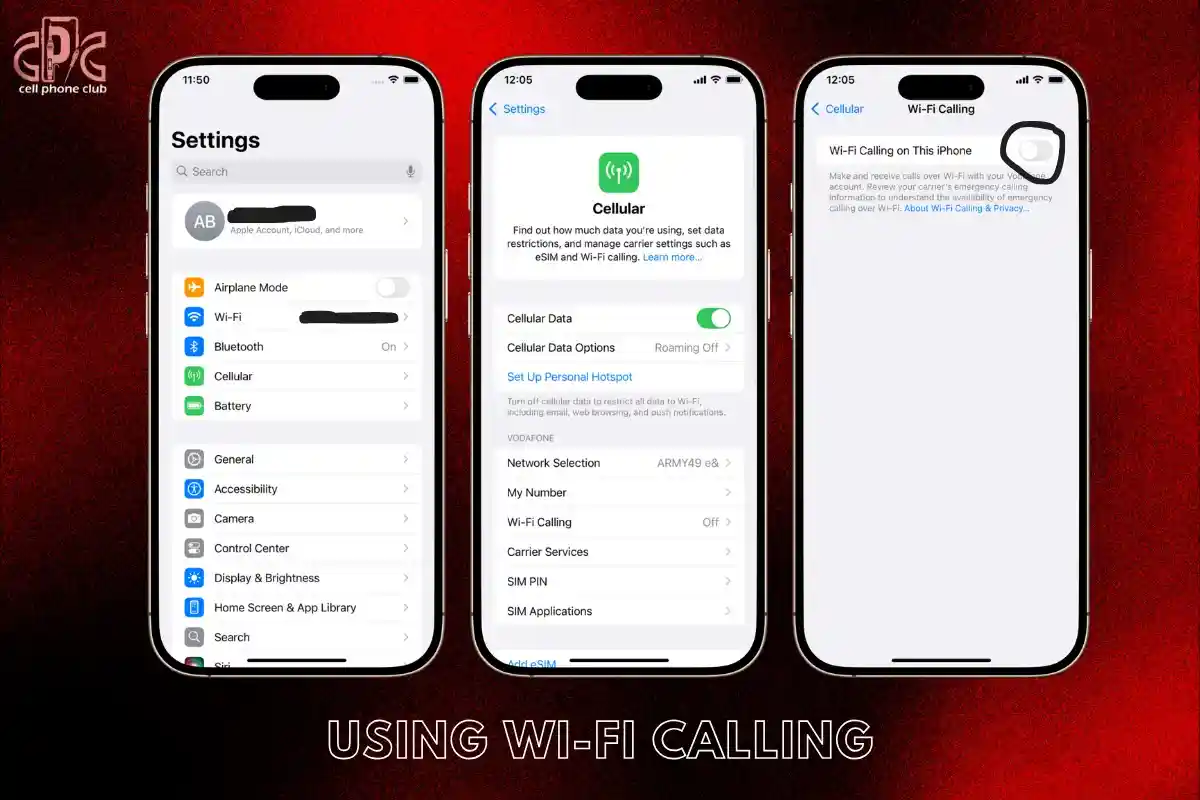
If you’re struggling with no service on your iPhone 11 Pro and can’t fix it immediately, there’s a useful workaround you can try. Wi-Fi Calling is a great temporary solution that helps you stay connected. Here’s how to enable it:
Step 1: Go to Settings on your iPhone.
Step 2: Select Cellular and then tap on Wi-Fi Calling.
Step 3: Toggle on Wi-Fi Calling on This iPhone.
This will allow you to make calls and send messages over Wi-Fi instead of relying on your cellular network. It’s a great way to keep in touch while you search for a permanent iPhone 11 Pro no service fix.
Just remember, this is a temporary fix, and you’ll still need to address the underlying issue to restore full cellular functionality.
How to Fix No Service on iPhone – Live from Our Store!
If you’re facing the frustrating “No Service” issue on your iPhone 11 Pro, there are several solutions you can try. Here are some steps that have proven to work:
Swap the SIM Card: A damaged or improperly inserted SIM card can be the culprit. Make sure your SIM is properly seated and test with a new one if necessary.
Perform a Network Reset: This can fix network-related problems by restoring your network settings to their default state. Simply go to Settings > General > Reset > Reset Network Settings.
Update iOS and Carrier Settings: Outdated software or carrier settings can cause connectivity issues. Check for updates by going to Settings > General > Software Update.
Replace Faulty Antennas: If you’ve tried everything else and still experience issues, it could be a hardware problem. Replacing the antenna might be the final step in fixing your iPhone 11 Pro’s “No Service” problem.
If you’re still stuck, don’t hesitate to visit your local service center or book a remote consultation for personalized assistance!
Final Thoughts: Signal Troubles Happen—Stay Calm and Methodical
Experiencing “No Service” on your iPhone 11 Pro can be frustrating, but before you panic, remember that there are plenty of solutions to try. Start with the basics—check the SIM card for damage or try reseating it.
A minor setting issue could also be the culprit, so toggle Airplane Mode on and off or check your network settings. If you’re dealing with a software glitch, a quick update or restart might do the trick.
Here are some quick fixes you can try:
Check your SIM card: Ensure it’s properly seated or replace it if damaged.
Toggle Airplane Mode: This can help refresh your network connection.
Software update: Make sure your iPhone is running the latest version of iOS.
If all else fails, and the issue is hardware-related, don’t worry—Apple has your back with reliable service options. Take a calm, methodical approach, and you’ll likely resolve the issue without needing a replacement.
Frequently Asked Questions (FAQs)
What causes my iPhone 11 Pro to say No Service?
It could be a SIM issue, network settings error, software glitch, or a hardware problem like antenna failure.
Will resetting network settings delete my data?
Nope! It only wipes saved Wi-Fi, Bluetooth, and VPN settings—not your personal data or apps.
Can a software update fix no service problems?
Absolutely. Updates often include network-related bug fixes and new carrier compatibility.
Is Wi-Fi calling safe and reliable?
Yes, it’s a great temporary solution when you have poor cellular reception but solid Wi-Fi.
Does using Airplane Mode really help?
It can. It forces your phone to reconnect to the network from scratch, which often helps.
Can a phone case block the signal?
Some thick or magnetic cases can interfere with antennas—try removing yours to test.
What should I do if my SIM works in another phone?
If it works elsewhere, your iPhone 11 Pro might have a hardware issue or need a deeper reset.
Can I fix hardware issues myself?
Not recommended. Internal repairs require special tools and skills—visit a professional.
Does AppleCare cover signal issues?
Yes, if it’s a hardware defect and your phone is under warranty or AppleCare+.
Why does my signal drop in some places only?
Some areas have weak coverage or use different frequencies your iPhone might struggle with.
What’s the difference between LTE and 3G settings?
LTE is faster but can be unstable in weak areas. Switching to 3G can help with stability.
Should I replace my SIM card regularly?
If it’s old, damaged, or worn—yes. Your carrier can provide a new one quickly.
Will a factory reset definitely fix the issue?
Not always, but it helps rule out software problems completely.
What’s the best temporary fix?
Using Wi-Fi calling is usually the best quick workaround if cellular signal is gone.