

Getting locked out of your iPad can be a serious hassle—especially when you’re hit with that “iPad is disabled” message. How to undisable an iPad really comes down to the method that fits your situation, whether it’s a forgotten passcode or a syncing issue.
The good news? You’ve got options. From using iTunes or Finder to erasing it through iCloud, there are clear paths to get your device back up and running. Let’s break down the most effective ways to unlock it safely and quickly.
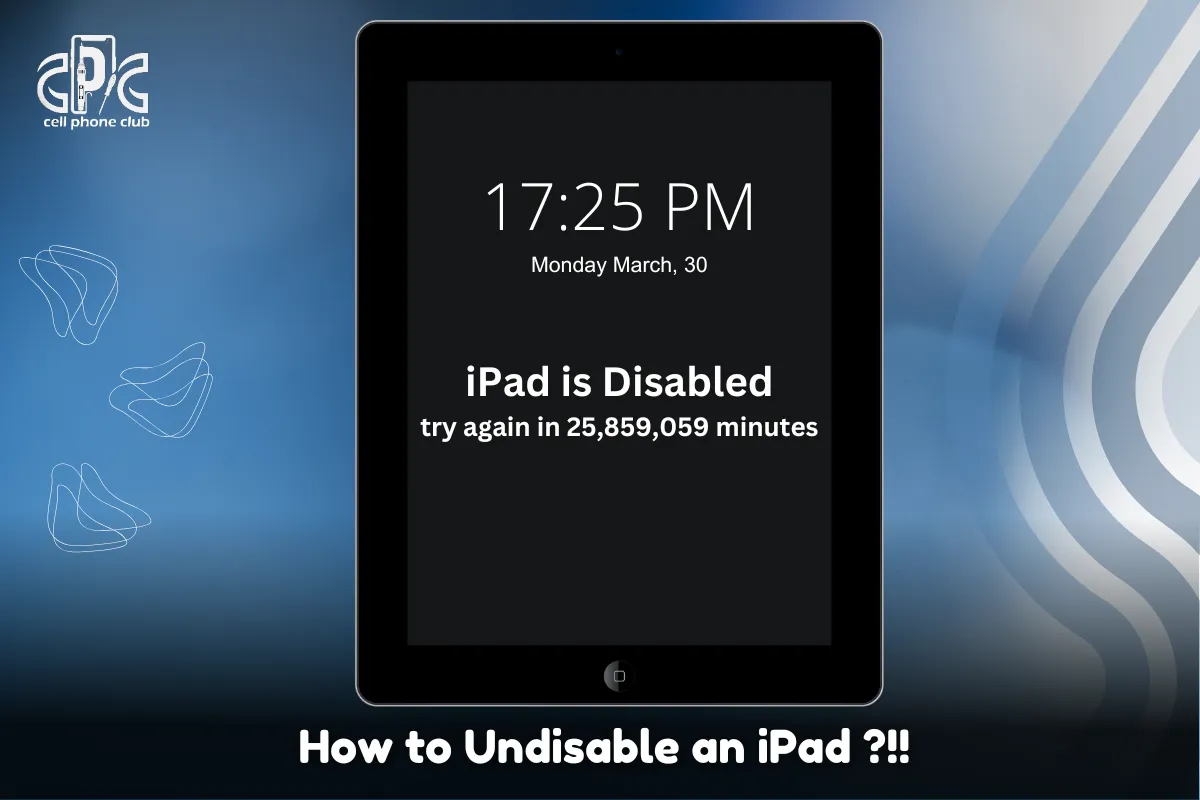
Getting locked out of your iPad doesn’t mean it’s gone for good. Whether it’s a case of too many wrong passcode attempts or a forgotten code altogether, you can get back in. The key is choosing the right method based on what caused the lockout in the first place.
Here’s a quick guide to help:
Forgotten Passcode? Use iTunes or Finder to restore your device. Just connect the iPad, initiate recovery mode, and follow the prompts.
Linked to Apple ID? You’ll need your credentials to bypass Activation Lock during the reset process.
No Backup? Be prepared for data loss, as restoring wipes the device.
How to undisable an iPad? It really comes down to using the proper tools—like iTunes, iCloud, or Finder—while making sure your Apple ID is handy. It’s completely fixable, just takes the right steps.
If you’ve entered the wrong passcode too many times, your iPad doesn’t just freeze up once—it stacks the lock time with every failed attempt. What starts as a simple 1-minute delay can quickly escalate:
6 wrong tries: Locked for 1 minute
7 tries: Locked for 5 minutes
8 tries: Locked for 15 minutes
9 tries: Locked for 1 hour
10 or more: Your iPad may show “iPad is disabled, connect to iTunes”
At that point, figuring out how to undisable an iPad becomes necessary. While the wait times grow, the good news is the lock isn’t always permanent.
With the right tools—like iTunes, Finder, or iCloud—you can unlock it, erase it, and start fresh. Just avoid more guesswork to keep things from getting worse.
Reactivating a disabled iPad is easier than it seems. it just means it’s time to take the right steps. If your iPad is disabled, there are a few proven ways to bring it back to life.
Here’s what usually works:
iTunes or Finder: Connect your iPad, put it into recovery mode, and choose “Restore.” This erases everything, so having a backup helps.
iCloud (Find My iPad must be enabled): Go to iCloud.com, sign in, and use the “Erase iPad” feature remotely.
Third-party tools: Some apps can help, but make sure they’re trusted and reliable.
The method you choose depends on your situation—especially whether you’ve backed up your data. Charge the device first, follow the steps carefully, and you’ll be back in in no time.

If you’ve been locked out of your iPad and want to undisable it using iTunes, here’s what you need to do:
This method is ideal if you’ve forgotten the passcode or your iPad is disabled for some other reason.
Read Also: How to Send App from iPhone to iPad
No iTunes? No problem. You can still unlock a disabled iPad using iCloud—as long as “Find My iPad” is enabled and the device is online. This method is perfect for those who don’t have access to a computer but still need a reliable fix.
Here’s how to undisable an iPad without iTunes:
Go to iCloud.com: Sign in using your Apple ID linked to the iPad.
Select the device: Under “All Devices,” choose your disabled iPad.
Erase remotely: Click “Erase iPad” to remove all data and the passcode.
Set it up again: Once wiped, restore from a backup or set it up as new.
This remote reset works fast and doesn’t require cables or downloads—just internet access and your login credentials.
If iTunes or iCloud isn’t an option—or you’ve tried them with no luck—third-party tools can step in. These applications are designed to remove the lock screen without needing your passcode, and some don’t even require iTunes.
Popular choices include:
Tenorshare 4uKey: Known for quick unlocks, especially when you forgot your Apple ID or passcode.
iMyFone LockWiper: Offers user-friendly steps and works even if your screen is totally unresponsive.
Dr.Fone – Screen Unlock: A solid all-in-one solution with good support for older iOS versions.
While exploring unlocking an iPad, these tools provide a reliable alternative. Just make sure you’re downloading from official websites to avoid scams or data loss.
And as always—back up your data when you can, because these methods will wipe your device.
Running into a disabled iPad without the Apple ID credentials can feel like a dead end—but there are still honest ways to move forward. If you forgot your Apple ID or can’t log in, don’t try to force a workaround. Instead, focus on the official routes.
Here’s what you can do:
Recover your Apple ID: Use Apple’s website or contact Apple Support to reset login info.
If it’s a second-hand iPad:
Ask the previous owner to remove the device from their account via iCloud.
Provide proof of purchase to Apple, like a receipt or invoice.
Undisable an iPad without an Apple ID sounds appealing, skipping Apple’s security isn’t possible. But with patience and the right documents, you can unlock your device the right way.
Read Also: How to recover my apple id password ?

No, Siri cannot unlock a disabled iPad. Since a disabled device is completely locked, you won’t be able to interact with Siri to bypass the passcode. While older iOS versions had vulnerabilities that allowed limited access through Siri, Apple has since patched those loopholes for security reasons.
If your iPad is disabled, the only reliable way to regain access is by resetting it using iTunes or iCloud. This will erase the device, removing the passcode so you can set it up again. If you have a backup, you can restore your data afterward.
While Siri is a powerful assistant, it’s not a hack for unlocking a locked device. To fully regain control of your iPad, you’ll need to go through the proper reset methods.
Getting locked out of your iPad can be frustrating, but a few simple precautions can help prevent it from happening again:
By following these steps, you can keep your iPad secure and avoid the hassle of being locked out.
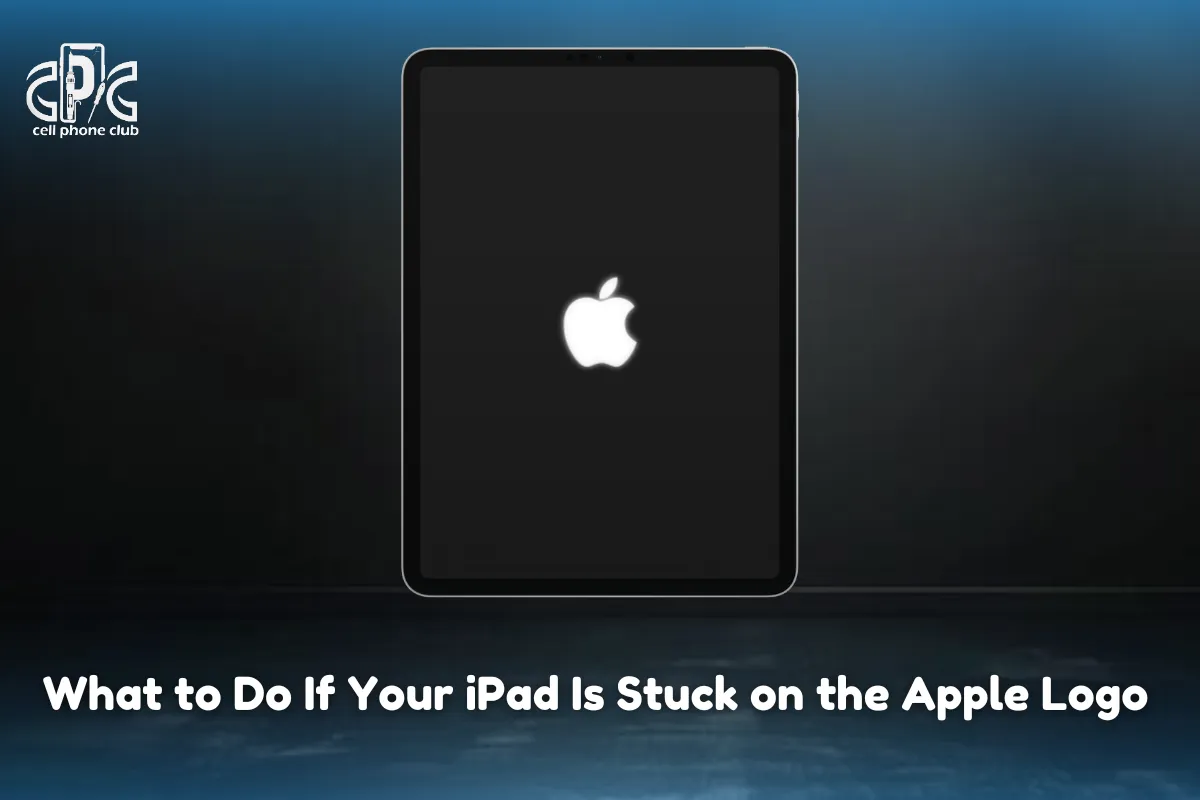
If your iPad is stuck on the Apple logo and won’t boot up, it’s likely caught in a boot loop—a common issue after an update, reset, or restore. Here’s how to fix it:
If none of these steps work, you may need to use DFU Mode (Device Firmware Update) for a deeper restore.
Resetting your iPad to factory settings is the best way to remove a passcode, fix issues, or start fresh. However, this process erases all data, so make sure to back up your files first. You can reset your iPad using three methods:
Via Settings (If Accessible)
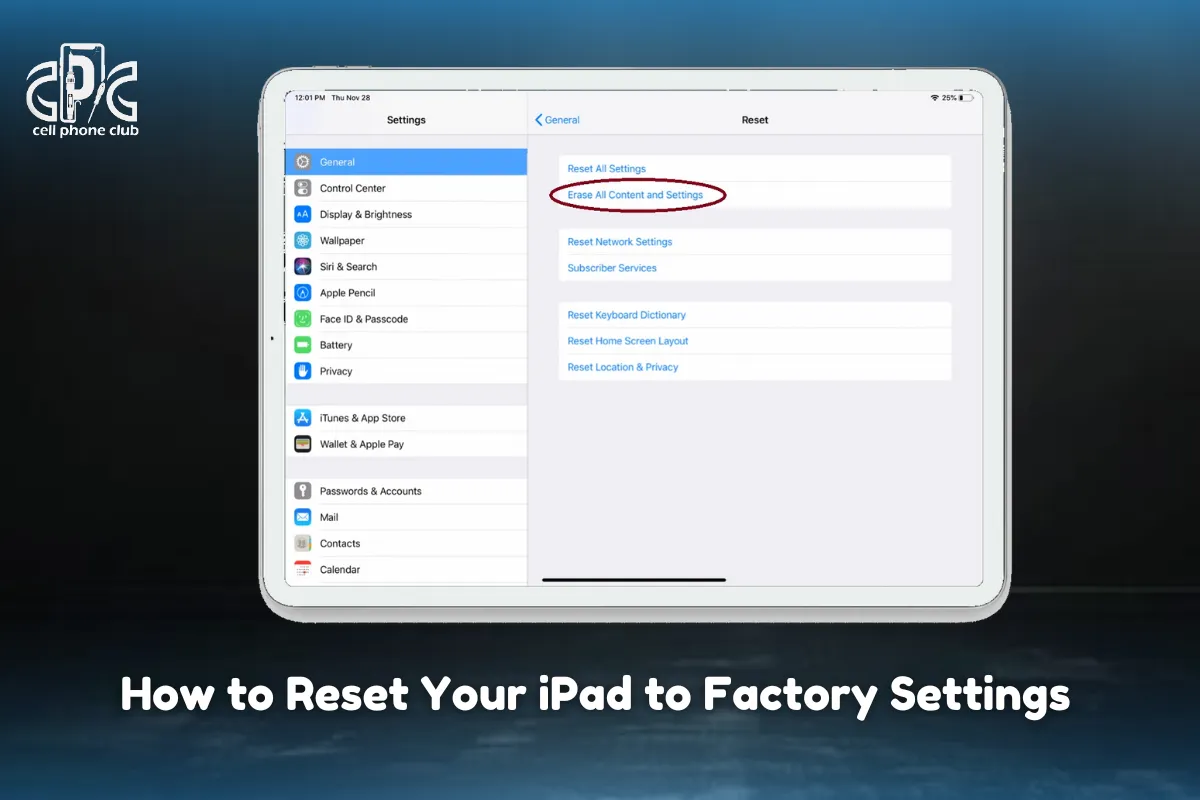
Using iTunes/Finder
Through iCloud
Once reset, you can restore your data from a backup or set it up as new.
If you’ve reset your iPad, you might be worried about losing important files—but if you’ve backed up your device, recovery is simple. Here’s how to restore your data:
From iCloud Backup
Using iTunes/Finder Backup
If you haven’t backed up your iPad, your data is likely lost. To avoid this in the future, enable automatic iCloud backups or regularly back up to a computer.
Read Also:
Yes! Taking a few precautions can help you avoid the frustration of a disabled iPad. Here’s how:
By following these steps, you can keep your iPad accessible while maintaining strong security.
Looking for a one of the best Repair stores for phones in Brooklyn, NYC? Cell Phone Club, we specialize in fast and affordable repairs for iPhones, Android devices, tablets, and laptops.
Whether you need iPhone screen repair, battery replacement, or water damage fixes, our expert technicians have you covered. As a leading iPhone repair shop in Brooklyn, we use high-quality parts to ensure your device works like new.
We also offer professional tablet repair services for iPads and Android tablets, fixing cracked screens, charging issues, and software glitches.
We handle everything from MacBook repairs to Windows PC troubleshooting. Visit Cell Phone Club today for same-day service, also feel free to Call us today at (718) 836-8999 or send us a WhatsApp message and keep posted with our special repair offers.
In conclusion, Recovering a disabled iPad may seem frustrating, but with the right steps, you can regain access quickly. Whether you reset it using iTunes, iCloud, or recovery mode, there’s a solution for every scenario.
To prevent future lockouts:
The process can take anywhere from a few minutes to an hour, depending on the method you use and whether you have a backup available.
Yes, you can use iCloud to reset your iPad and remove the passcode without needing a computer.
Erasing your iPad will delete all data, but you can restore it from a backup afterward.
No, Siri cannot bypass the passcode on a disabled iPad. You will need to reset the device using iTunes or iCloud.
If you repeatedly enter the wrong passcode, your iPad will become disabled temporarily or permanently.